Make the restaurant work schedule clear to everyone using it
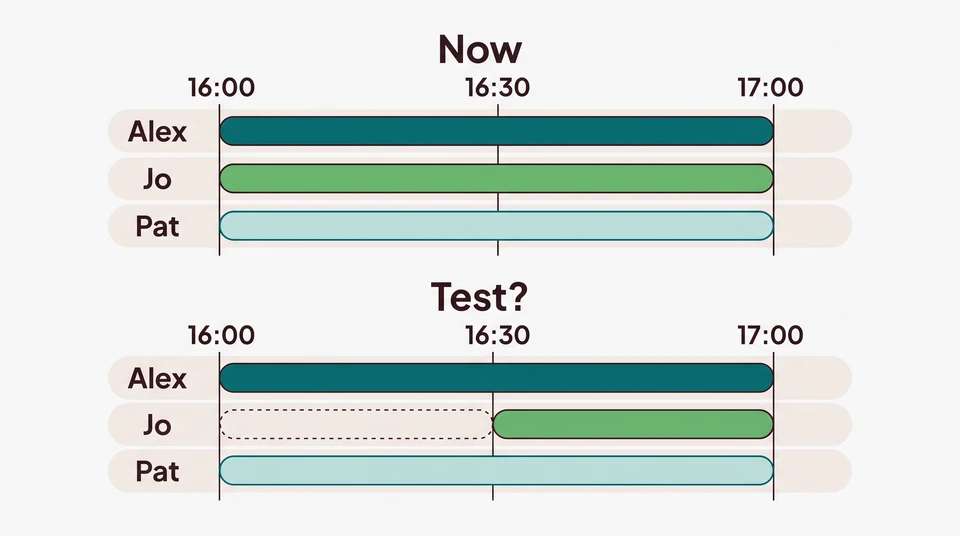
Two copies show different Friday starts. Check the published version, settle what changed and help each team member find the current schedule.
Give your team one current schedule, a named manager to check with and a clear way to handle changes. A finished roster still needs an explanation if two copies show different starts for Friday.
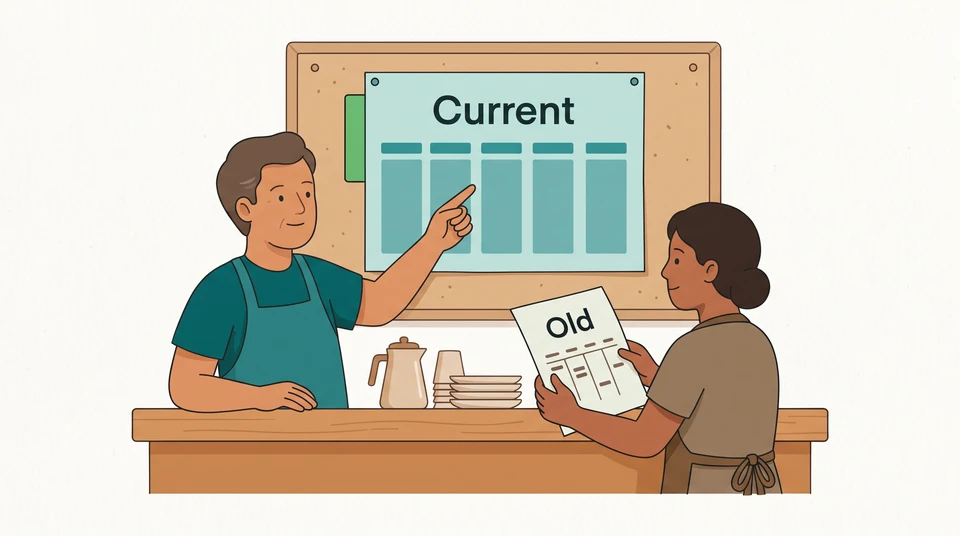
Before your next service, open the published week yourself. Check its dates and version, replace the old noticeboard copy and make sure each person knows where to find their shifts. If someone has a different copy, resolve the difference before telling them which time applies.
Include the shift details people need
Make each shift readable without a second message. Include the person’s name, date, venue or work area, role, and start and finish times. Use the same time format throughout. For a late bar shift, write both dates: Friday 23 October, 8pm to Saturday 24 October, 2am, not just “Friday close.”
Put the week range, year, local time zone, version and responsible manager above the shifts. Mark the schedule as published rather than leaving staff to distinguish it from a planning draft. Keep personal contact details, absence reasons and private availability notes out of the shared copy.
Australia’s hospitality rostering competency treats presenting clear rosters and communicating them to colleagues as part of the job. Use that as a practical prompt: could a team member find their next shift and the person to ask, without having watched you build the week?
An example published week
Imagine a small cafe in Columbus, Ohio. Morgan manages the schedule. Here is a short extract from the published week.
Week: Monday 19 to Sunday 25 October 2026.
Location: One cafe, Columbus; all times local Eastern Time.
Current copy: Published v2, Thursday 22 October at 2pm.
Owner: Morgan, cafe manager.
Where to check: The current-week folder agreed with the team; the matching paper copy is beside the staff entrance.
- Monday 19 October: Cafe closed; no shifts in this example.
- Tuesday 20 October: Jordan, counter, 7am–3pm.
- Wednesday 21 October: Riley, kitchen, 7am–3pm.
- Thursday 22 October: Jordan, counter, 7am–3pm.
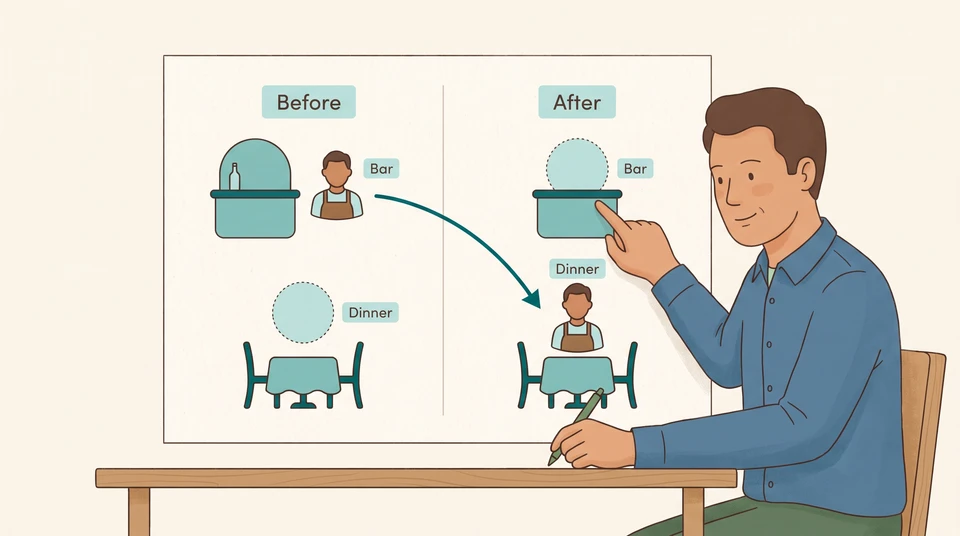
- Friday 23 October: Casey, floor, 4pm–10pm. This is the changed shift; see the decision record below.
- Saturday 24 October: Casey, floor, noon–8pm.
- Sunday 25 October: Riley, kitchen, 8am–2pm.
The list is deliberately small so you can see the labels and the Friday change. Your actual published schedule needs all the shifts your team will work, not just this example’s entries.
Choose one current place, not whichever copy arrived last
Choose a location your team can actually use: an existing shared folder, your scheduling workspace or a clearly identified paper master. Tell staff which one is authoritative and who maintains it. A screenshot can help someone check a shift, but it is a copy of the schedule, not the place to resolve a disagreement.
If you use both a digital and a paper copy, put the same version on each. When you replace the paper, remove the old sheet from the staff noticeboard. Keep superseded versions separately for your records, labelled so they cannot be mistaken for this week’s instructions.
Assign a backup manager for days the schedule owner is away. Give them the current version and change record, not just permission to edit a file. They need to explain a change without guessing what the previous manager intended.
Check a change before treating it as the new shift
A version label tells people which copy you mean. It does not settle whether a change can go ahead.
Before moving a published shift, the manager should check the requirements that apply to the venue and the affected person’s arrangements. Then discuss the practical impact: availability, transport, caring commitments, another job and any training or supervision the new time needs. If those checks are unresolved, keep the proposed change separate from the confirmed schedule and explain what still needs a decision.
Do not build a universal notice period into your process. Check the employment rules, agreements and policies that cover your actual US or Australian venue before changing hours. For a question about a particular change, get advice for that location rather than treating a roster template as clearance.
Two copies disagree about Friday
Suppose Casey brings Morgan an older screenshot showing a 5pm–10pm Friday shift. The current published copy says 4pm–10pm. Morgan should not simply say, “Use the latest screenshot.”
For this example, assume Morgan checked the venue’s change requirements and discussed the earlier start with Casey before publishing v2. Casey confirmed they could work it. Morgan now checks the saved versions and the change record to establish what was changed, rather than relying on memory.
Friday decision record
- Older copy: Published v1, Wednesday 21 October at 3pm; Casey, Friday floor shift, 5pm–10pm.
- Current copy: Published v2, Thursday 22 October at 2pm; Casey, Friday floor shift, 4pm–10pm.
- Checked change: The Friday start moved one hour earlier. The finish, role and venue stayed the same.
- Staff impact: Casey’s earlier arrival was discussed and confirmed before v2 was published. Morgan checks whether this is still possible if Casey raises a new problem.
- Manager action now: Show Casey the current shift and the recorded change, replace the old noticeboard copy and point them to the current-week folder.
- If the record does not support the change: Pause the earlier-start instruction. Resolve it with Casey and the responsible manager; do not treat a new filename or a sent message as agreement.
Morgan can explain the result in a short note:
Casey, Friday 23 October is 4pm–10pm on the floor, as we discussed. Published v2 is in the current-week folder and beside the staff entrance. Your older copy shows 5pm. If the earlier start no longer works or you cannot open v2, speak with me so we can resolve it before the shift.
Ask for acknowledgement when you need to know someone received an update, but keep it separate from agreement to changed hours. “I’ve seen it” does not answer “Can you work that change?” Silence answers neither.
Help everyone find and use the latest version
Before relying on the shared location, check access with each person. A new starter may not yet have their account set up. Someone else may be unable to open a file on their phone. Ask them to find their next shift, rather than just asking whether they received a link.
If access fails, provide a readable alternative through the contact method already agreed with that person, or show them the current paper copy. Include their date, role, start, finish and version. Keep the access problem on the manager’s follow-up list so the temporary alternative does not become another permanently competing schedule.
Agree when and how schedule questions will be handled. Do not make this process depend on everyone watching messages outside work. If a change is time-sensitive and the person has not confirmed receipt, the manager needs a direct follow-up and a coverage decision, not an assumption that a notification reached them.
For a new starter, carry the same details into onboarding: where to arrive, who will meet them and who can answer a schedule question. Check with the training lead before changing a shift that relies on supervision. Hiring, onboarding, training and scheduling should lead to one workable first shift, not four different sets of instructions.
Start free, then choose how your team will share
If you need to put the week on paper first, try the free schedule maker. Build it manually in your browser, then print it or export CSV. You can start without an account or email; the draft stays in that browser. The tool does not notify employees, so you still need to share and explain the finished copy yourself.
For account-based sharing, CrewCentral Scheduling lets staff view published shifts in their account and mobile app. Email updates depend on notifications being enabled. Check that your team can access the week; an email update is not a substitute for resolving a conflicting copy. AI can help prepare an account-based roster draft, but a manager reviews and adjusts it before publishing.
For this week, start with one check: ask a team member to show you their next shift. If their copy differs from yours, check the published version and change record together, settle what applies and replace the outdated copy.