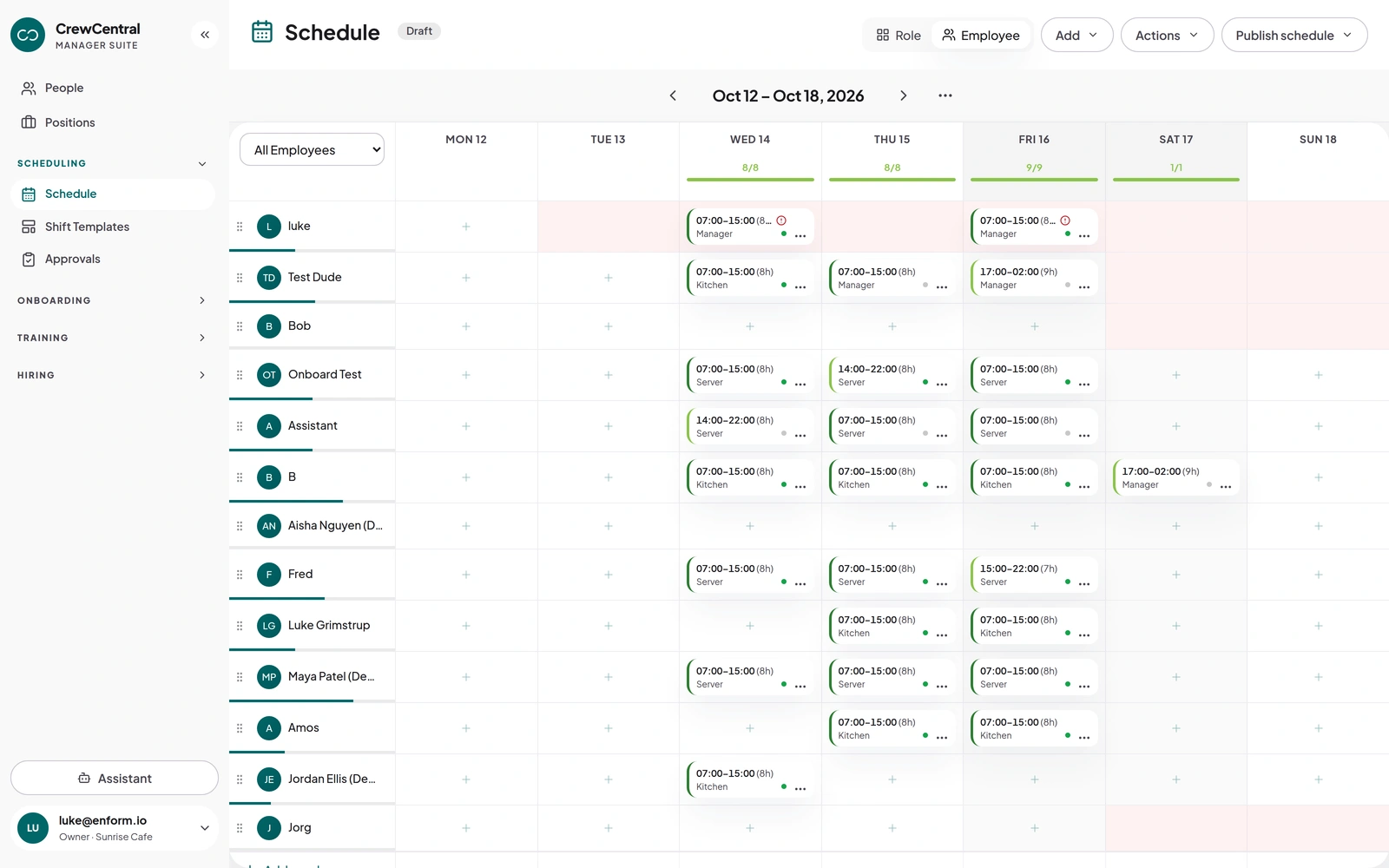
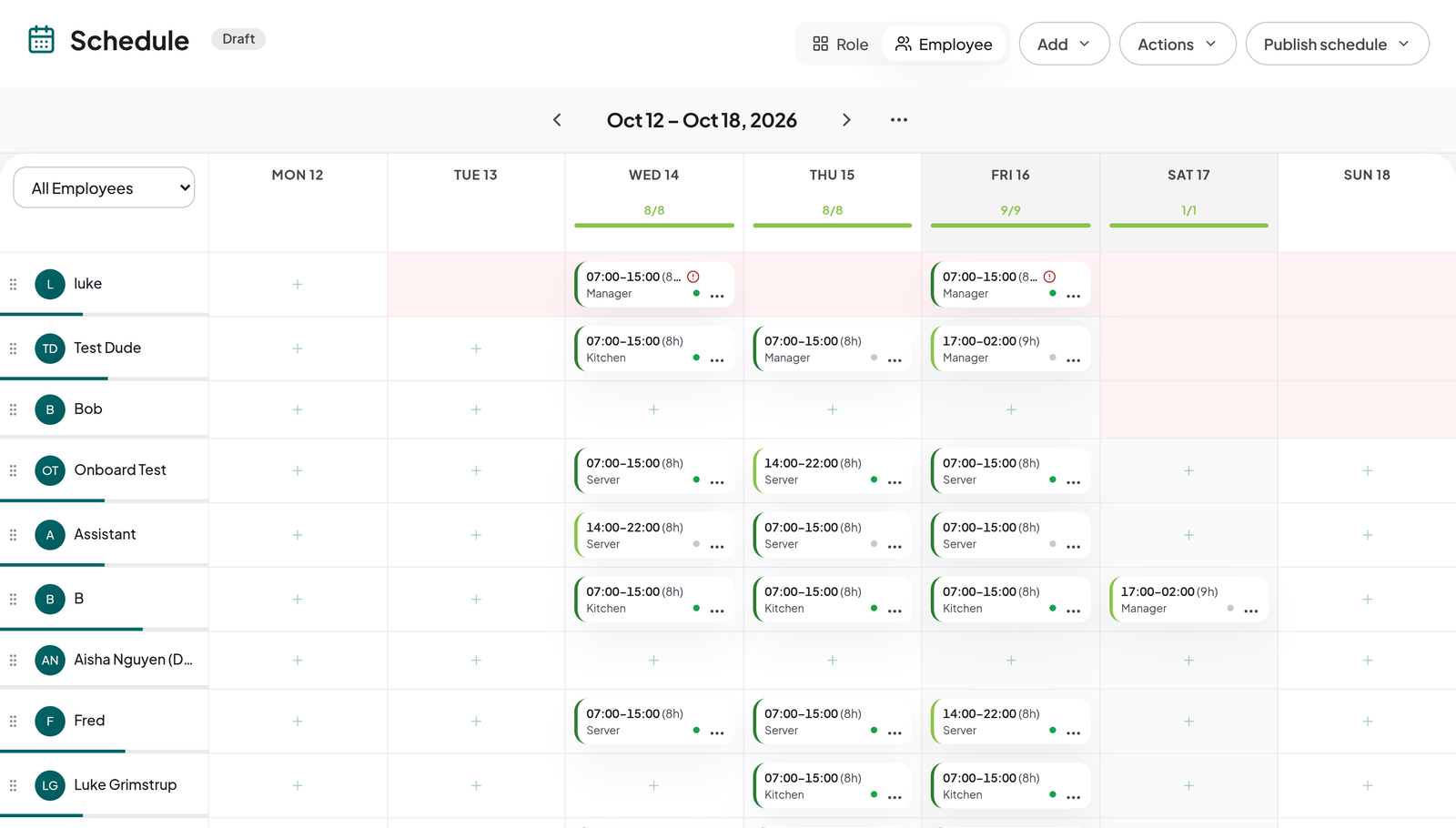
Only have a few minutes to plan next week's schedule?Let your AI Assistant do the roster work. Draft the week, swap people, add shifts, and publish when you're ready, all in one conversation. Less clicking and dragging. More time to run your venue.
Your working week
Draft, refine, and publish in one conversation.
01
Start next week with a draft
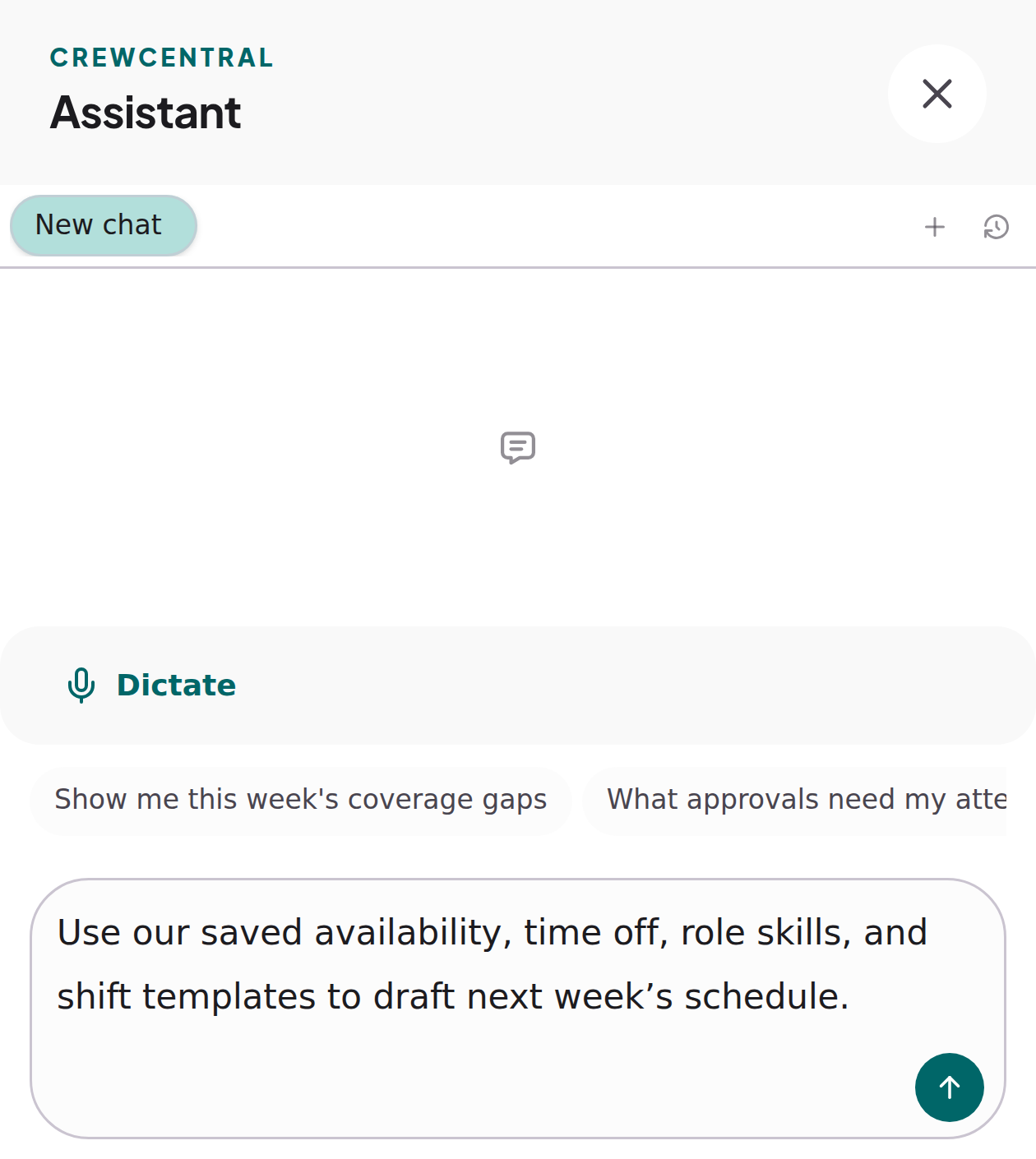
Generate the week from your saved shift templates and team information. Start with assignments to review, rather than placing every shift by hand.
Example request
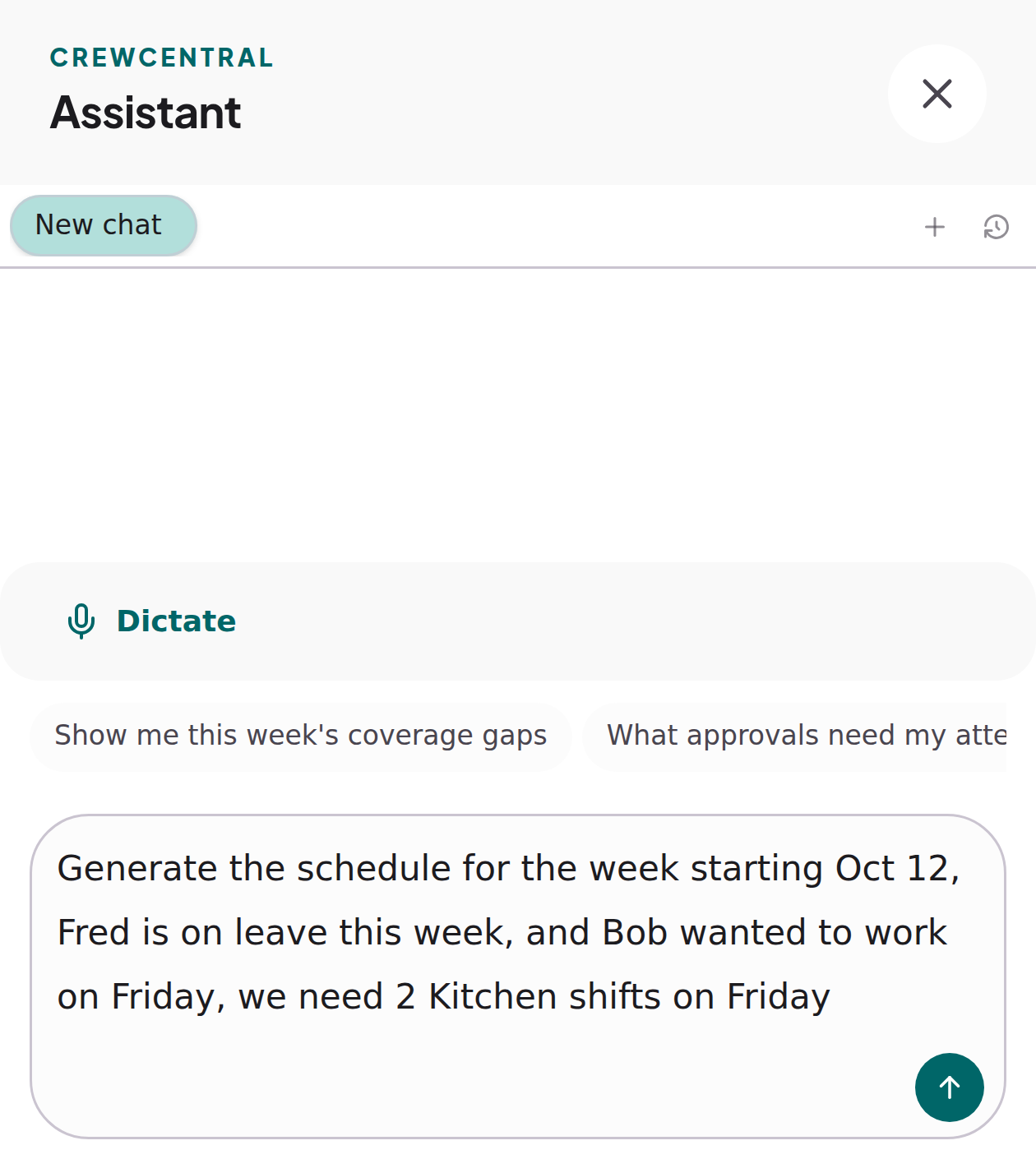
“Generate a schedule for the week starting 12 October using our shift templates.”
02
Refine the schedule
Swap people, add shifts, or change shift times. Describe the adjustments and let your assistant update the draft, without manually clicking and dragging shifts around.
Example request
“Swap Alex and Sam's Friday shifts in the draft for the week starting 12 October.”
03
Publish when ready
When the roster is ready, ask the assistant to publish it. Review the confirmation and approve it to make the schedule available to your team.
Example request
“Publish the schedule for the week starting 12 October.”
Text or voice
Plan the week in your own words.
Use voice or text to send requests to the assistant. Check your request, send it, and keep planning in the same conversation.
Your team, already connected
Your team details. Already in place.
The assistant uses your saved availability, time off, role skills, and shift templates to draft the week. No copying team details into another chat.
Generating a week and publishing a schedule require your confirmation in the assistant. The generation confirmation also shows whether existing shifts will be replaced.
Individual changes to draft shifts can happen directly from your request. Review the result in the roster. A published schedule must be reopened before the assistant can edit it.
Your existing CrewCentral access permissions also apply in chat.
How it works
From the first draft to a published roster.
1
Start with a draft.
Ask the assistant to generate next week's schedule using your saved team information and shift templates. Confirm generation, then review the draft.
2
Refine the schedule.
Tell the assistant who to swap, which shifts to add, or what times to change. It updates the draft so you can check the result in the roster.
3
Publish when ready.
Ask the assistant to publish the reviewed schedule. Confirm publication to share the roster with your team.
AI Assistant questions
Your questions, answered.
Can I plan the week by voice?
Yes. Use the microphone in the assistant to turn your spoken request into text. Check the text before sending it. Voice input needs microphone permission and a supported browser or transcription connection.
What can the AI Schedule Assistant help with?
It can generate a weekly draft from your shift templates, show coverage gaps, check scheduled hours and availability, and create or change draft shifts. You can also ask which approval requests need attention.
Do I need to upload my team list every time?
No. The assistant can use the people and scheduling information saved in your CrewCentral workspace. Keep availability, positions, and shift templates up to date so it has the details it needs.
Will it publish a schedule without asking?
Publishing through the assistant requires confirmation. Generating a week also requires confirmation. Individual draft edits can happen directly from your request, so check the changed roster afterward.
What if there aren't enough people to cover the week?
Review the reported coverage gaps and scheduling issues. You may need to change your staffing plan or scheduling inputs. Generating a draft does not guarantee every shift can be filled.
Who can use the assistant?
The current web assistant is for managers, admins, and owners in workspaces with the AI module enabled. It follows your existing access permissions.
What do I need to connect it?
Your workspace needs an active AI connection. Owners and admins can connect an OpenAI account for the organization in Settings → AI Assistant. Usage on that connection is billed to the connected OpenAI account.
Is this the same as the free schedule maker?
The free schedule maker lets you build a roster manually in your browser. The AI Assistant works inside your signed-in CrewCentral workspace, with your saved team and scheduling information.
Your next week starts here
Put AI to work on your next roster.
Let the assistant draft the week, make your adjustments, and publish after your confirmation. Spend less time clicking and dragging shifts around.