Build and check a restaurant schedule in a weekly grid
A worked six-person week shows how to enter shifts, total planned person-hours and correct a clash while keeping the work visible.
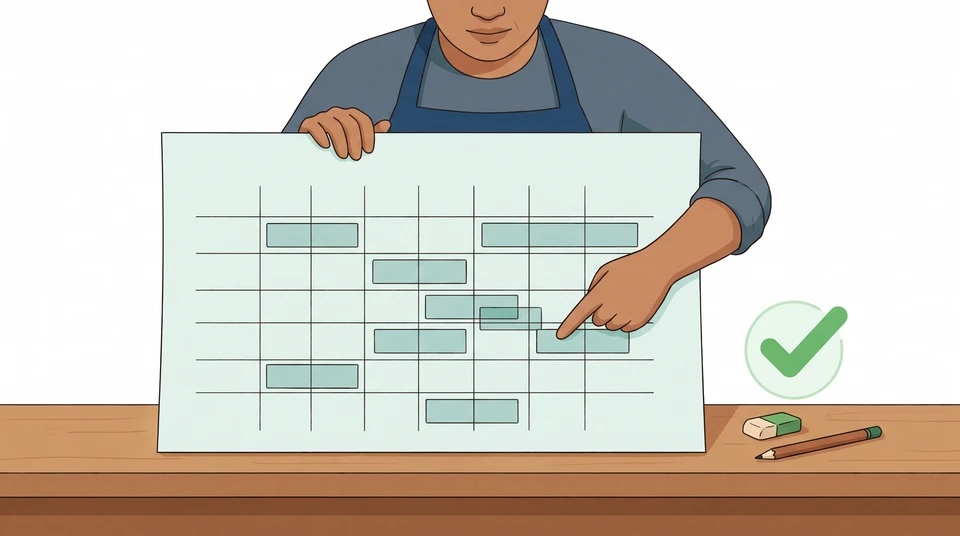
Put one person on each row and the seven dates across the top. Use the same role names and time format in every entry. Then check the week in two directions: across each person’s row for hours and overlaps, and down each day for work that still needs cover.
Start with a draft you can read without opening another message. You can do this on paper or in your existing schedule tool; the checks below do not depend on a particular app.
Set up a readable weekly grid
Write the week range, year, venue, local time zone, draft version and responsible manager above the grid. In each shift entry, include the role, start and finish. Use an explicit “Off” rather than leaving a cell that might mean “not entered yet”. Keep unconfirmed work marked “Open” or “Unconfirmed”, not assigned to someone who has not agreed they are available.
If the same shift repeats, a short code can keep the grid readable. Put its full meaning immediately beside the grid. Do not use “close” as a finish time or mix 6pm with 06:00. For an overnight shift, enter both dates. Our example stays within each calendar day.
Australia’s hospitality rostering unit includes clear roster formats and planning with dates and times. For your own grid, ask a team member to find their next role, start and finish. If they need you to decode it, simplify the labels.
A six-person example week
Imagine a small dinner restaurant in Melbourne, open Wednesday to Sunday. Pat manages the schedule. For this example, the team has confirmed availability for the spans below, and the people assigned to each role can do that work without a learner’s supervision.
Week: Monday 19 to Sunday 25 October 2026.
Venue: One Melbourne restaurant; all times local Melbourne time.
Current working copy: Draft v2; owner: Pat, restaurant manager.
Status: Entries corrected; relief and employment-arrangement checks still to finish before sharing a confirmed schedule.
The example service plan calls for these role windows:
- Lead: 15:30–22:00 on each opening day, including preparation, service support and closing.
- Cook: 16:00–22:00 on each opening day.
- Floor: 16:30–22:00 on each opening day.
- Dish support: 18:00–21:00 on Friday, Saturday and Sunday.
Those are this example’s chosen windows, not staffing levels or shift lengths to copy. The manager must check the actual work, bookings, team readiness and relief needs at their own venue.
Enter people, roles, dates and shifts consistently
Here is the corrected person-row grid. Read each code using the legend directly below it; “Off” means no work planned that day.
| Person | Mon 19 | Tue 20 | Wed 21 | Thu 22 | Fri 23 | Sat 24 | Sun 25 |
|---|---|---|---|---|---|---|---|
| Pat | Off | Off | L | L | L | L | L |
| Alex | Off | Off | K | Off | K | Off | K |
| Jordan | Off | Off | Off | K | Off | K | Off |
| Mia | Off | Off | F | F | Off | F | Off |
| Sam | Off | Off | Off | Off | F | Off | F |
| Lee | Off | Off | Off | Off | D | D | D |
Shift legend — same-day start and finish, using the 24-hour clock
- L — Lead: 15:30–22:00; a 6.5-hour span.
- K — Cook: 16:00–22:00; a 6-hour span.
- F — Floor: 16:30–22:00; a 5.5-hour span.
- D — Dish support: 18:00–21:00; a 3-hour span.
On a phone, check one person’s row at a time. Here is the same week written out by person:
- Pat: Lead, 15:30–22:00, Wednesday 21 through Sunday 25 October; off Monday and Tuesday.
- Alex: Cook, 16:00–22:00, Wednesday 21, Friday 23 and Sunday 25 October; off Monday, Tuesday, Thursday and Saturday.
- Jordan: Cook, 16:00–22:00, Thursday 22 and Saturday 24 October; off Monday, Tuesday, Wednesday, Friday and Sunday.
- Mia: Floor, 16:30–22:00, Wednesday 21, Thursday 22 and Saturday 24 October; off Monday, Tuesday, Friday and Sunday.
- Sam: Floor, 16:30–22:00, Friday 23 and Sunday 25 October; off Monday through Thursday and Saturday.
- Lee: Dish support, 18:00–21:00, Friday 23 through Sunday 25 October; off Monday through Thursday.
For your own week, enter each person’s assignments before adding totals. If someone has two separate assignments on one day, write both roles and both time ranges in their entry. Hiding the second job in a separate role view makes it harder to spot a clash.
Check planned hours and overlapping assignments
Add the start-to-finish spans
For this check, planned person-hours means the sum of each person’s scheduled start-to-finish spans. We have not deducted breaks. These figures are not paid hours, a wage calculation or confirmation that the shifts meet employment requirements.
First work in minutes, then convert to hours. For example, 16:30–22:00 is 330 minutes; 330 ÷ 60 = 5.5 hours, not 5.30 hours.
| Person | Calculation | Weekly planned person-hours |
|---|---|---|
| Pat | 5 × 6.5 hours | 32.5 |
| Alex | 3 × 6 hours | 18 |
| Jordan | 2 × 6 hours | 12 |
| Mia | 3 × 5.5 hours | 16.5 |
| Sam | 2 × 5.5 hours | 11 |
| Lee | 3 × 3 hours | 9 |
| Total | 32.5 + 18 + 12 + 16.5 + 11 + 9 | 99 |
Cross-check by day: Monday and Tuesday are zero; Wednesday and Thursday are 18 planned person-hours each; Friday, Saturday and Sunday are 21 each. That also gives 18 + 18 + 21 + 21 + 21 = 99 planned person-hours.
Matching totals are useful, but they do not prove that the assignments work. One person can still be counted in two roles at once.
Correct one clash without deleting the work
Suppose Draft v1 had these Friday 23 October entries:
- Alex: Cook, 16:00–22:00, plus dish support, 18:00–21:00.
- Lee: Off.
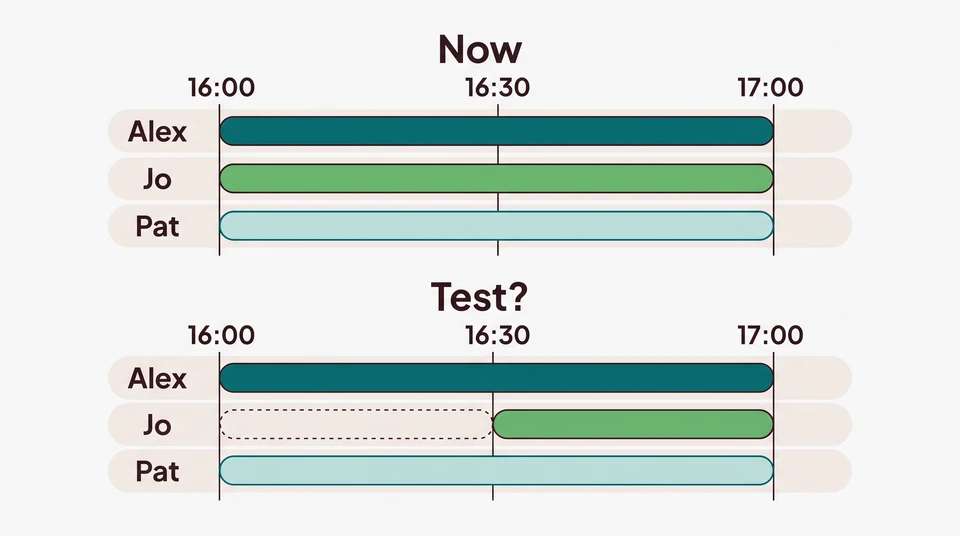
Alex’s two assignments overlap for three hours, from 18:00 to 21:00. Adding their durations gives nine assignment-hours, but Alex is only present for a six-hour span. The kitchen and dish station cannot both rely on Alex during those three hours.
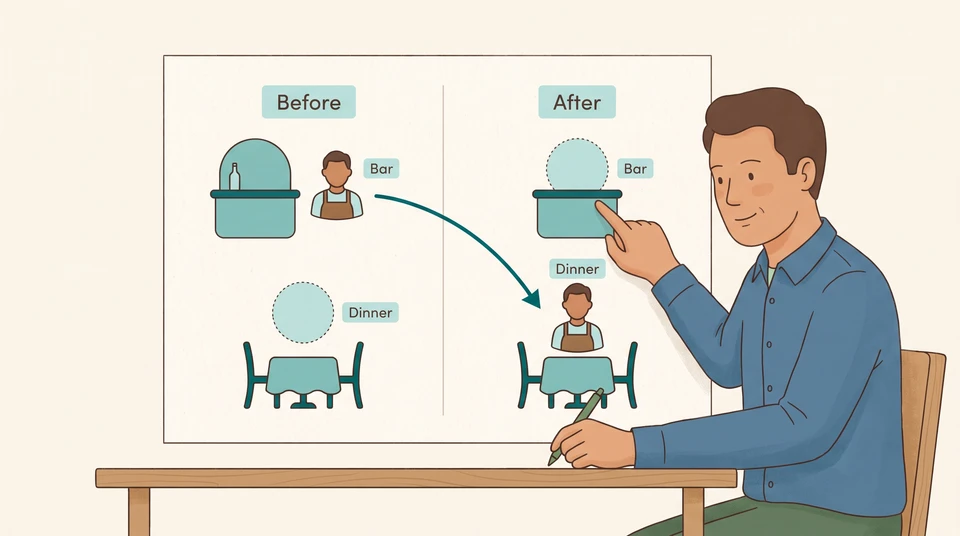
Pat checks that Lee is available and ready for dish support, then makes this correction in Draft v2:
- Alex: Cook, 16:00–22:00 only.
- Lee: Dish support, 18:00–21:00.
The required dish work stays in the plan. Alex’s Friday assignment total changes from nine hours to six; Lee’s changes from zero to three. The sum of the two people’s assignment durations stays nine hours, but it now comes from two people whose duties do not clash.
Pat’s lead assignment stays unchanged. Do not fix the clash by putting Pat on dish support while still counting Pat as available for relief and supervision elsewhere. If Lee cannot take the shift, leave dish support marked “Open” and find another suitable available person or change the service plan. Do not share the same workload with the gap erased.
Check the absences, not just the filled cells
The grid shows role windows, not a finished break-and-relief plan. Pat still needs to record when each person steps away, who takes over and what that person stops doing. Include Pat’s own absence and any supervision that a different team would need. If cover depends on one person doing two jobs at once, the draft is not ready.
For an Australian venue, use Fair Work’s roster guidance to start checking the award or agreement that applies; do not assume this example settles breaks, hours or notice. For a US venue, start with the US Department of Labor’s restaurant toolkit and check the relevant state and local authorities separately rather than importing an Australian arrangement. Keep payroll and actual hours worked separate from this planning total.
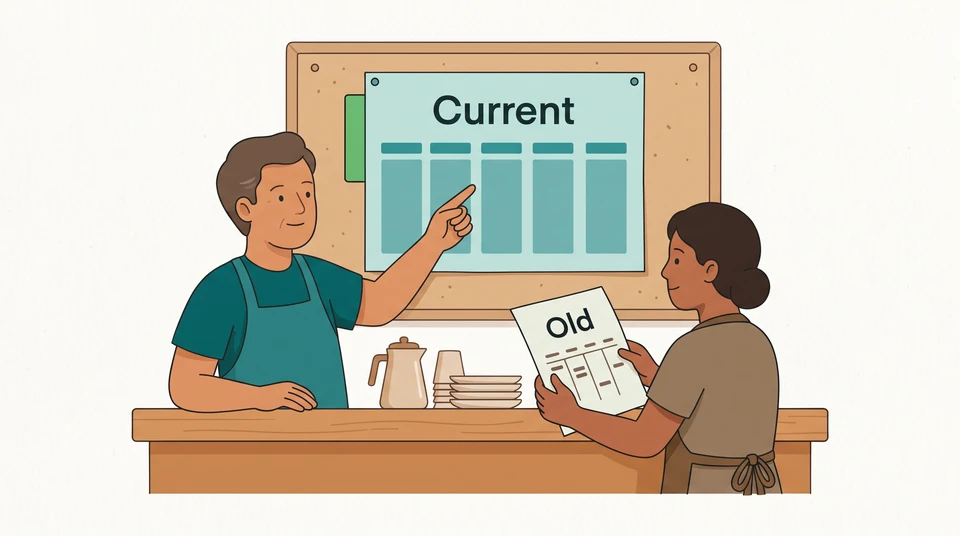
Keep one working version
After a correction, Pat updates the draft version, rechecks Alex and Lee’s rows, and checks Friday’s cook, floor, dish and lead cover together. Once relief and the remaining checks are resolved, Pat can confirm the schedule and tell the team where the current copy lives. Archive the earlier draft so it cannot be mistaken for the instruction to work.
Choose the next workflow when manual checks become awkward
Keep a simple grid if it is easy to maintain and your team can find the current copy. If you want to build one now, CrewCentral’s free Schedule Maker is manual and browser-local. You can start without an account or email, then print or export CSV. It does not generate an AI roster, notify employees or provide shared cloud storage.
If availability and team coordination need a shared workspace, explore CrewCentral Scheduling. The account-based workspace brings availability, role skills and roster drafts together with hiring, onboarding and training. AI can help prepare a draft; a manager reviews and adjusts it before publishing.
For this week, start with one row: write every assignment for that person, add the spans, then check whether any times overlap. Fix the clash and recheck the role you moved—not just the total at the bottom.