Teach POS modifiers without practicing on live customer orders
Use an imagined burger order to compare intended and entered modifiers. Confirm the provider’s practice setup, then record what the manager actually observed.
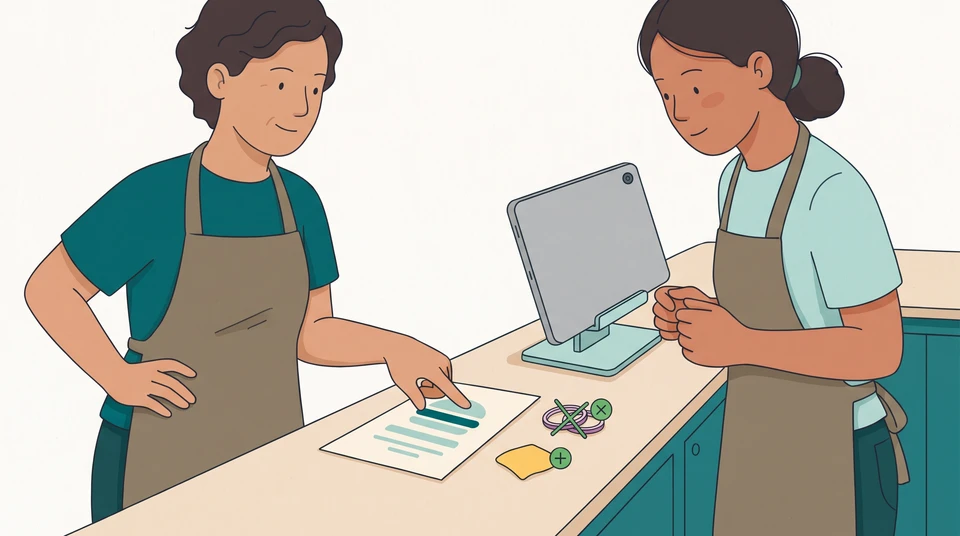
Give a new starter a made-up order and a clear comparison to make: does the entered order match what the guest asked for? Start with one ingredient removal and one separately priced extra, not a whole service or a payment exercise.
For restaurant POS order entry training, the manager’s first job is to arrange a provider-approved way to practise. Until that is confirmed for your venue’s system, rehearse the decisions on paper. Do not use a customer’s order as the exercise.
Choose common order variations
Bring your current menu and the venue’s instructions for entering changes. Pick an item the learner will actually sell. Check which ingredients are included, which extras have a price and how your venue expects each change to be recorded.
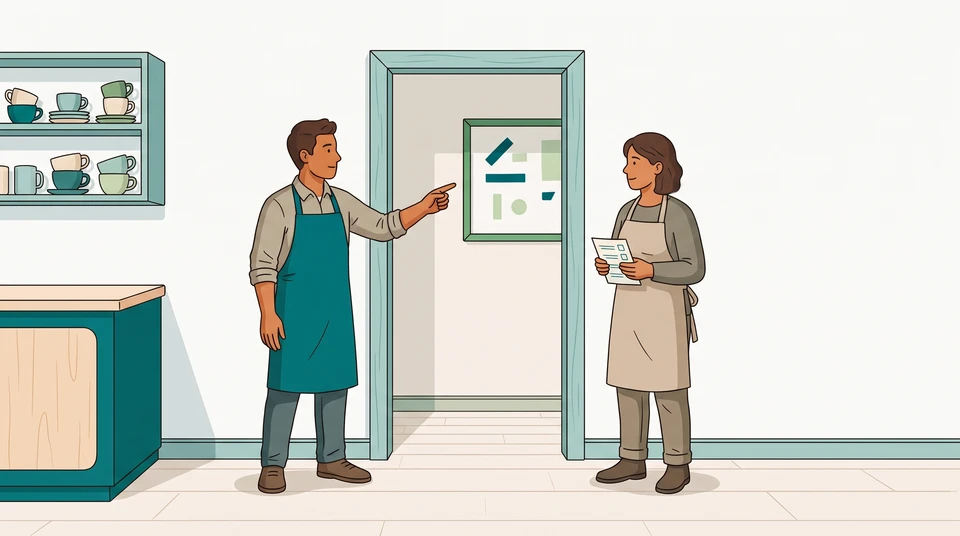
Imagine Sam manages a small burger restaurant and is coaching Alex, a new server. For this exercise, the house burger includes onion, and cheese is a separately priced extra. The practice request is:
One house burger, no onion, with added cheese, please.
Sam asks Alex to describe the order before touching the POS: keep the burger, remove its onion and add the priced cheese extra. Saying “no onion” is not a request for an extra topping. Adding cheese is not just a note about what to leave out.
Use your own menu’s names and pricing rules. If the menu, manager’s instruction and POS setup disagree, stop and have the responsible manager resolve the mismatch before asking Alex to repeat it.
This example is about order entry, not handling an allergy request. Keep allergy questions with your venue’s separate procedure and responsible manager; an ingredient-removal entry is not an assurance that a meal is safe.
Use the POS provider’s approved practice method
Check the provider’s current instructions for your exact product, installed version and region. Ask the authorized administrator to confirm the trainee’s access and how the session will end. Do not assume every POS has the same training switch.
For example, Lightspeed Restaurant K-Series documents training POS users. Its Back Office setup uses a Trainee user group with predefined permissions that cannot be configured. Existing POS users are assigned to that group and need both a QR code and PIN for training login. A normal user with the proper permissions must first open a sales period. These are K-Series arrangements, not instructions for other Lightspeed products or other vendors.
Training is not invisible to reporting. K-Series includes training transactions in some report sections, and its Staff Report includes them in account totals. The training guide also says to log out after practice and remove a finished trainee from the group and reassign them before real use; orders left under that group do not count as real sales.
Before entering the practice order, ask your provider or authorized administrator what happens to kitchen printers or displays, stock, connected services and notifications in your setup. Do not infer that separated sales reporting suppresses those effects. If the approved method and its limits are unresolved, stay with paper comparison and arrange the POS session later. Keep payments out of this exercise.
Compare the entered and intended orders
Once the approved practice setup is confirmed, Sam demonstrates the burger order using the venue’s current instructions. Alex then has a turn while Sam watches. Stop at the provider-approved review point; do not send or finalize anything merely to finish this checklist.
Sam keeps the original request beside the order details and compares each part. Here is how Sam could review an initial practice entry:
| Intended order | Alex’s practice entry | Sam’s check and next action |
|---|---|---|
| One house burger | One house burger | Confirm the item and quantity match. |
| Remove onion | Onion removal is missing | Ask Alex to find the mismatch, then correct it using the venue’s instructions. |
| Add the separately priced cheese extra | “Add cheese” appears only as a general note | Check whether the configured priced extra was selected. If not, show that choice and let Alex correct it. |
A note saying “add cheese” is not enough for Sam to accept this attempt: at this venue, Alex needs to select the configured priced extra. Sam checks the actual entry and displayed price against the current menu, rather than assuming the wording did that work.
After the corrections, ask Alex to compare the whole order again. Then offer another made-up request with one change—for example, the same burger without the cheese extra. Watch whether Alex checks what changed instead of repeating the previous entry.
Review readiness before independent use
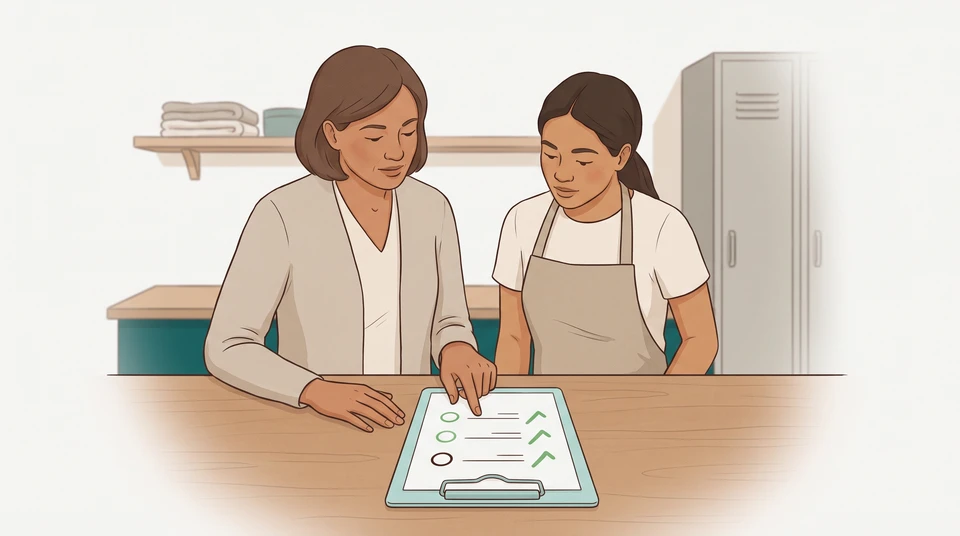
Write a short task-level note while the attempt is fresh. Record the menu or instruction version, the order tried, what matched, what needed a prompt and the next check.
Sam’s note could say:
Alex entered the burger and quantity correctly. After a prompt to compare the request, Alex added the missing onion removal. Sam demonstrated the priced cheese selection. Next: Sam will observe another modifier order in the approved practice setup before deciding whether Alex can enter these orders without help.
Keep that decision narrow. A corrected burger order does not establish readiness for every menu variation, a busy service or payment handling. If Alex still needs help, name the next supervised practice task and who will watch it. Before real use, the authorized administrator should restore the correct access under the provider’s instructions.
Start with a paper order and a manager’s observation; you do not need a new tool to begin. When you want role-learning steps and manager sign-offs beside the schedule, explore CrewCentral Training. Hiring, onboarding, training and scheduling share team context, but the manager still observes the work and decides what is ready. CrewCentral does not verify certifications or licences.
To plan trainer and learner time first, try the free schedule maker. It is manual and saves edits in your browser, with no account or email needed to start—not an AI generator or shared cloud training record.