Choosing rostering software for an independent Australian venue
Use the same cafe week in each shortlisted tool. Keep a practical record of manager and staff tasks, workarounds and unanswered buying questions.
Choose rostering software by trying the same working week in each tool, not by counting features on a comparison page. Write down what your venue needs, test the manager and staff tasks separately, then keep a short decision record of what worked and what still needs an answer.
This guide is written by the CrewCentral team. It offers a buyer’s test, not a ranking of providers.
Define the jobs the tool must handle
Before booking a demo, list the jobs your next roster must get right. For a small cafe, that might mean covering the coffee station during the Saturday rush, keeping assignments within confirmed availability and letting each person find their own shifts.
For each job, add a simple test:
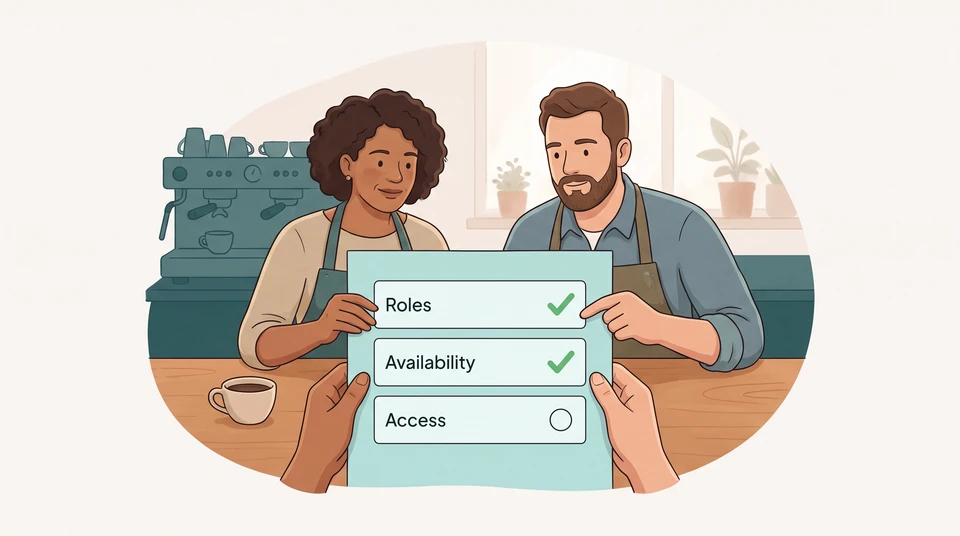
- Roles: can the manager see which work is covered, rather than just how many people are on?
- Availability: can the manager enter a restriction and check the affected assignment?
- Review: can the manager change a draft before anyone treats it as the finished roster?
- Access: can a staff member open their shifts using the account and device they would actually use?
Mark each job “must have” or “can work around”. If your current spreadsheet handles the week comfortably, keep it as the baseline. A new tool needs to solve a specific problem, not just look busier.
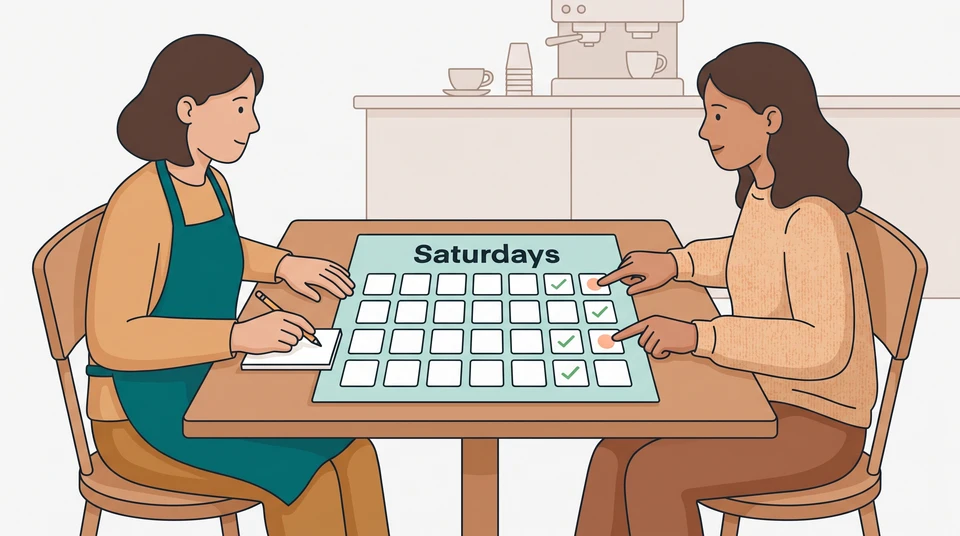
Try one cafe week, including an awkward Saturday
Imagine a cafe that trades Tuesday to Sunday and closes on Monday. The owner, Alex, wants to compare two shortlisted tools using the same example week. Weekday service runs from 7 am to 2 pm; weekend service runs from 8 am to 3 pm. Alex adds the venue’s preparation and closing work separately.
For the test, Sam is an experienced barista, Jo can cover the till and floor, and Lee is learning the till with supervision. Sam is unavailable on Saturday. Alex can make coffee, but also needs time to receive a delivery that morning. Use your own venue’s coverage needs when setting up the test week.
Use invented staff details in a demo, and repeat these four checks in each tool.
1. Find the work left uncovered
Enter the week’s required roles and times, then add the example people. Leave Saturday’s coffee assignment open.
Ask the manager to show where the gap appears. Does the view make it clear that coffee needs cover, even though other people are working? Save a short note of the view or steps used. If the manager has to keep a second paper list to spot that gap, record that as a workaround.
2. Change availability and check the draft
Enter Sam’s Saturday restriction. If a demonstration starts with Sam assigned that day, ask the manager to find and correct it. Note whether the tool highlights the clash, prevents the assignment or leaves the check entirely to the manager.
If you try an AI draft, inspect its assignments rather than treating a filled grid as a finished plan. Alex still has to decide who can cover coffee while the delivery is handled. Moving Alex onto coffee does not also cover the delivery, and Lee’s name on the roster does not make Lee ready to work independently.
Before sharing the roster, have Alex confirm Lee’s training and readiness for the assigned work, including any supervision needed, and write down who will resolve the coffee and delivery gap.
3. Compare manager and staff access
Ask to see the manager’s draft view and a separate staff view. Do not accept a demonstration of the owner’s dashboard as proof that a team member can see their shifts.
Using an authorised demo account, have someone in the staff role open the week on a phone. Check what they can see, how they submit availability and whether a changed shift appears after the manager saves or publishes it. If email updates matter to your team, check the required settings and test delivery to a demo address you control.
Record any extra invitation, account, app or plan requirement. If a task cannot be tried, leave it as an open question rather than a pass. Never use real worker records just to make a sales demo look realistic.
4. Make one manager correction
Change an assignment or shift time, then review the week again. Ask the staff tester to find the resulting shift details. Keep the draft and published states separate, and note the exact action that makes a change visible to staff.
For Alex, the useful result is not “the software filled Saturday”. It is a clear coffee-coverage decision, a separate delivery plan and a staff view that matches the manager’s final roster. If those are still unresolved, the trial is not finished.
Check the price and support behind that week
For each shortlist entry, save the dated price page or written quote that matches what you tested. Check the currency, GST treatment, billing period, minimum charge, paid add-ons and whether inactive staff count towards a charge. Ask what happens when a trial or offer ends. Leave the cost unresolved until the provider answers; do not fill a blank with a guessed price.
Check support against your own working hours, too. Ask which channel is included, when it is staffed and what happens if staff cannot open Saturday’s roster. Do not turn a published response-time estimate into a guaranteed service level.
For CrewCentral, the contact page lists email and a message form. If phone or live-chat help is essential for your venue, confirm that requirement before choosing it.
Where CrewCentral fits in the test, October 2026
Start without an account if you only want to try arranging the example week. CrewCentral’s free schedule maker is manual and saves the draft in your browser. You can edit, print and export CSV without signing up or supplying an email. It is not the AI roster tool or a shared team workspace, and it does not notify staff.
Account-based Scheduling adds AI roster drafts around availability, role skills and coverage, with manager review before publishing. Try staff access separately; building a week in the public editor does not test the account workflow or establish which account features you can use.
Look beyond the grid if you want hiring, onboarding, training and scheduling together. CrewCentral connects those steps around team information. Its onboarding checklists help managers see what remains to be done before a first shift. In your trial, check whether the person planning the week can find the information they need. Keep the decision about someone’s readiness with the manager.
Keep a decision record, not a winner’s badge
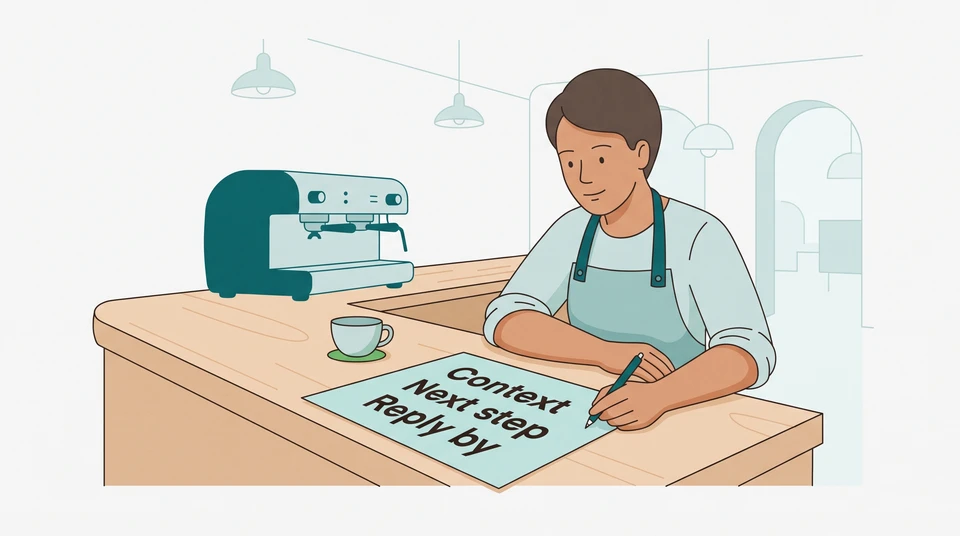
Copy this note for each tool:
- Tool, plan and test date:
- Must-do job and action tried:
- What the manager and staff tester actually saw:
- Workaround or unanswered question:
- Price and support evidence, with date:
- Next action, owner and decision date:
Choose “proceed” when the essential tasks work and the remaining tradeoffs are acceptable. Choose “hold” when an essential task is untested, access is unclear or the price needs an answer. Keep your existing approach if the new tool does not improve the job you set out to solve.
For an Australian venue, keep checks on your applicable workplace obligations separate from the software comparison. A vendor demonstration is not legal clearance.
To try the workflow, explore CrewCentral Scheduling, then run the same cafe week through your shortlist. Bring the decision record—not just a feature list—to your next manager discussion.